MESA Shopify automation
MESA is a Shopify workflow-automation platform for ecommerce operators who need to connect store events and app actions into repeatable processes without building each integration from scratch. It is designed for no-code ecommerce workflow automation, providing templates and setup help rather than requiring users to start with a blank, generic integration canvas.
MESA is a Shopify workflow-automation platform for ecommerce operators who need to connect store events and app actions into repeatable processes without building each integration from scratch. It is designed for no-code ecommerce workflow automation, providing templates and setup help rather than requiring users to start with a blank, generic integration canvas.
MESA is a Shopify workflow-automation platform for ecommerce operators who need to connect store events and app actions into repeatable processes without building each integration from scratch.
- Views
- 0
- Uses
- 0
- Favorites
- 0
- Supported Platforms
- Shopify
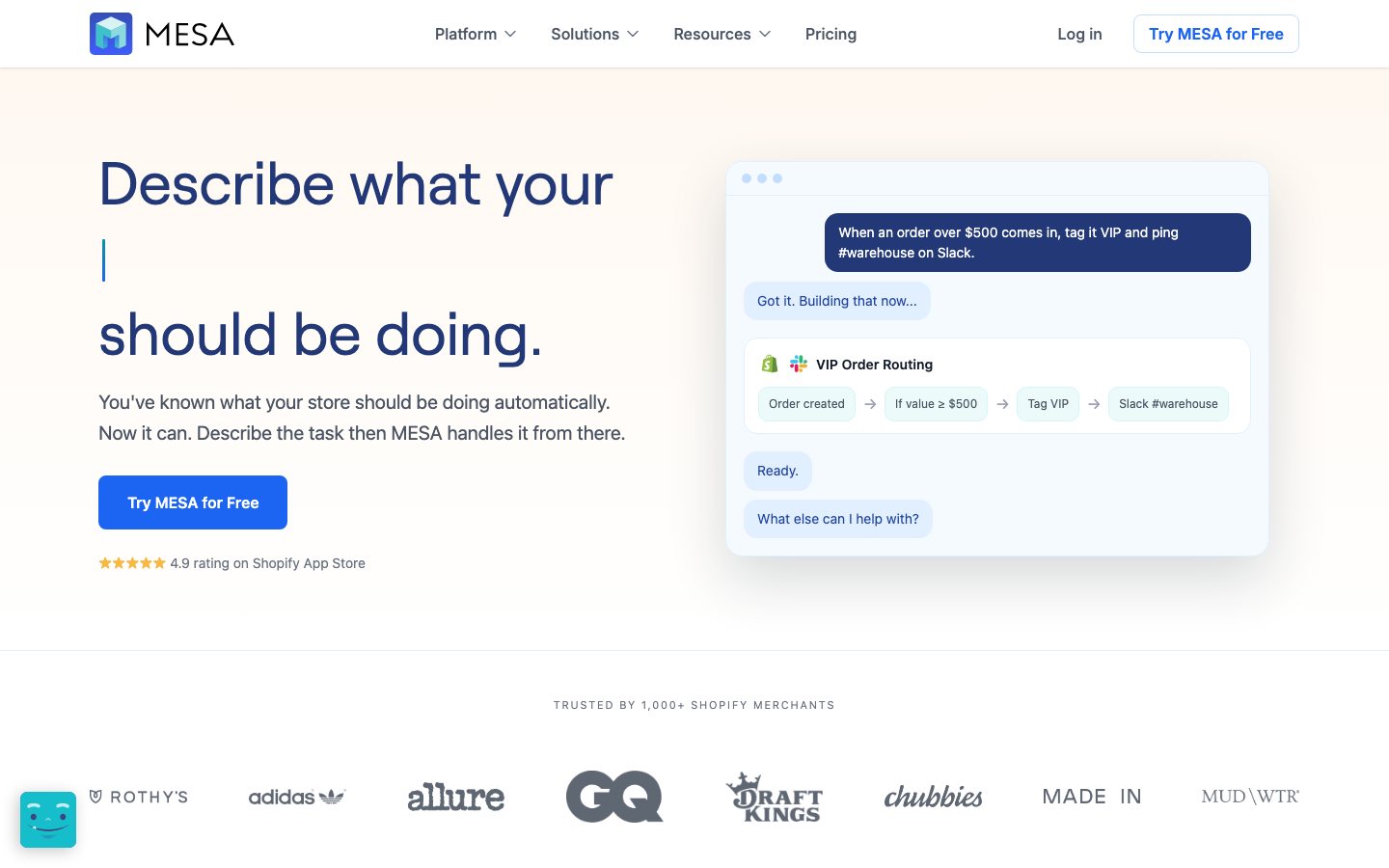
Buying view: It is designed for no-code ecommerce workflow automation, providing templates and setup help rather than requiring users to start with a blank, generic integration canvas. Automations can write into connected systems. Begin with read-only or notification flows, test duplicate-event behavior, and document approval from the responsible owner before enabling customer, order, inventory, or price changes.
MESA Shopify automation: features and workflows
MESA lets Shopify teams save repeatable workflows that move store events and records into configured actions. Merchants connect apps, map fields, add conditions and test real results before enabling a trigger. Templates shorten the setup, while Activity and replay tools help maintain the saved automation after launch.
Build an automation around a store event
MESA connects a Shopify event with actions in the store or another supported app. The team can start from a template or define the steps itself.
Event-driven workflows
An order, product or customer event starts the configured steps. The builder decides which fields are passed onward and which actions run.
Shopify orders to Google Sheets ↗Editable workflow templates
Templates supply a starting trigger and action sequence for a known store job. Merchants connect their accounts and adjust fields before enabling the workflow.
Shopify orders to Google Sheets ↗Task allowances, premium operations and log retention change capacity or access. They do not represent different workflows.
What the team configures
Each saved workflow contains the steps needed for its job. A filter can stop a run, and a failed action needs investigation in Activity.
Connections and field mapping
Authorize the apps and map the incoming Shopify fields to the destination. A successful connection alone does not prove that the destination received the intended values.
Shopify orders to Google Sheets ↗Filters and loops
Filters restrict which records continue, while loops repeat an action for each item. For an order export, a loop can create one spreadsheet row per line item.
Shopify orders to Google Sheets ↗Manual runs and Activity
Manual runs expose the data and result of each step. They can perform live actions, so the team uses controlled records and checks Activity before replaying a failed run.
Manual runs and testing ↗Data, logs and operating limits
Plans govern stored records, execution capacity, delay intervals and searchable log history. These controls affect how the same saved automation operates as volume grows.
MESA capabilities by plan ↗From workflow design to live operation
This is the merchant’s build and maintenance process. Individual runs follow the saved trigger, filters and actions; different store jobs use different steps.
- Choose the store job
Choose a template or define the event and intended result. Identify the source records and destination before connecting steps.
- Connect and map
Authorize the required apps and map fields. Add filters or loops only where the job needs them.
- Test with controlled records
Run representative inputs and inspect each step. Manual tests can write to the connected destination.
- Enable the workflow
Save the reviewed configuration and turn on its trigger. Check the first resulting destination record.
- Inspect and repair runs
Use Activity to locate failed steps and correct their settings. Before replaying, check whether earlier actions already wrote records.
Keep an order-item log in Google Sheets
Operations needs a shared row for each purchased item without repeating manual exports. MESA can copy new Shopify order details to the selected spreadsheet.
Preparation
Prepare the Shopify connection, a Google account with spreadsheet access and the columns the team needs. Use a controlled order for testing because the Google Sheets action writes real rows.
Build and test
Configure the order template
Start with Send Shopify Orders to Google Sheets. Keep its Order Created trigger and store lookup, then select the spreadsheet fields needed by operations.
Check the line-item loop
The loop passes each purchased item to Add Row. Map the order reference, SKU, quantity and other chosen fields so a multi-item order produces the intended separate rows.
Test success and a missing destination
Run a controlled order and compare the new rows with Shopify. If the spreadsheet is unavailable, correct its configuration and inspect existing rows before replaying to avoid repeating successful writes.
Enable and monitor
Enable the reviewed workflow and inspect Activity after new orders arrive. Operations maintains the spreadsheet and field mapping as its reporting needs change.
Illustrative run
For example, an order contains two different products. The loop sends each line item to Add Row, producing two rows linked to the same order; the workflow does not fulfill that order.
Result and responsibility
The team receives a spreadsheet log and a run history it can inspect. The merchant owns destination access and duplicate checks when replaying.
MESA pricing and plans
Set monthly non-premium and Premium task usage with the sliders to find the lowest estimated subscription and overage cost. Expand operating requirements to filter plans by the limits and apps you need.
Starter–Pro: $0.01 per extra non-premium task and $0.02 per extra Premium task. Each allowance resets monthly, including on annual plans.
The options below represent features and limits included in each plan, not optional usage-based add-ons. Adjusting them changes which plan the calculator recommends.
MESA competitor workflow and pricing comparison
MESA automates Shopify operations through connected apps and configured workflows. These competitors can also automate work across applications, but differ in how teams build rules, use AI, and maintain the process.
| Tool | Workflow difference | Official public price reference |
|---|---|---|
| Make AI Agents | Make lets the team connect applications on a visual canvas, define the data passed between steps, and add an AI agent where a task needs judgment. Operators then inspect the run to see which tools were used and what happened. MESA starts more directly from Shopify tasks and store-oriented templates. Make is worth comparing when the same process spans several business systems and the team wants to design and inspect each connection in detail. | Free — $0/monthCore — $9/month for 10,000 creditsPro — $16/month for 10,000 creditsTeams — $29/month for 10,000 creditsEnterprise — Contact salesMake AI Agents pricing ↗ |
| Zapier Agents | Zapier Agents starts with an assistant's task, connected information, and permitted app actions. It can research information, draft a support reply, or update a connected record as part of the assigned work. MESA starts from store events and a configured sequence, such as tagging an order and notifying a team. The overlap is cross-app operational automation; Zapier Agents is more relevant when the work involves interpreting content, while routine order handling needs clearly defined rules. | Free — $0Professional — From $19.99/month billed annuallyTeam — From $69/month billed annuallyEnterprise — Contact salesZapier Agents pricing ↗ |
| n8n AI Agents | n8n gives a technical team more control over the automation itself: connect systems, transform data, mix fixed rules with AI steps, and add approval or error-handling branches. It can be self-hosted, which also leaves hosting and maintenance with the team. MESA offers a store-oriented route built around Shopify tasks and templates. n8n is worth comparing when custom systems or complex handling rules justify having someone build and maintain the workflow. | Starter — €20/month billed annuallyPro — €50/month billed annuallyBusiness — €667/month billed annuallyEnterprise — Custom quoteCommunity — Free self-hosted software; infrastructure extran8n AI Agents pricing ↗ |
Is MESA right for your team?
Choosing MESA depends on the workflow you need, the purchasing scope and how the alternatives below fit your requirements.
MESA vs Make and n8n for Shopify automation
MESA centers on automations triggered by Shopify and connected-app activity. It is a close candidate when a merchant needs repeatable store operations without building an AI application. Make and n8n are broader automation platforms; compare the setup and maintenance work alongside the workflows they can run.
When to use an AI agent or app builder
Zapier Agents, Botpress and Dify are relevant when the required result includes an AI agent or configurable AI application. Their agent activity, conversation or model-use charges do not map directly to an ordinary MESA task. Choose the tool by the work that must happen, not by a shared AI label.
When Shopify Flow is enough and how to compare usage costs
Before adding a paid platform, test whether Shopify Flow covers the store's core triggers and actions. For any remaining process, calculate MESA tasks and premium tasks against Make credits, n8n executions or agent usage using the same transaction volume. Include failed runs and reruns in the estimate.
MESA FAQs
These questions explain what MESA does, how it is purchased and what to check when evaluating it.
What is MESA?
MESA is a Shopify automation platform that connects store events to multi-step workflows.
How much does MESA cost?
pricing depends on the selected automation plan and monthly workflow volume shown on MESA's current pricing page. Confirm taxes, usage charges and current contract terms on the linked official pricing source before purchase.
Which tools integrate natively with MESA?
The verified first-party directory lists Shopify, Shopify Flow, Klaviyo, Gorgias, Google Sheets, Slack, ShipStation. Each connector supports a defined data path, so check its guide before assuming every object or action is available.
Who is MESA best for?
MESA is best suited to Shopify teams that need store-specific automation without maintaining custom code. The practical fit still depends on data volume, team skills and the systems already in use.
What are the main MESA alternatives?
This page compares Make AI Agents, Zapier Agents, n8n AI Agents, Botpress, Dify. Compare their complete plan prices, workflow scope, native connections and data ownership against the same operating scenario.
What should buyers check before choosing MESA?
Check this boundary first: connector availability, workflow runs and implementation effort vary by recipe. Run a small production-like test and confirm export, cancellation and renewal terms before a broad rollout.
MESA native integrations
The connections below show how MESA works with other tools and which data or actions each connection supports.
Use the documented connector to exchange supported data or trigger the supported workflow with Shopify.
MESA app directoryUse the documented connector to exchange supported data or trigger the supported workflow with Shopify Flow.
MESA app directoryUse the documented connector to exchange supported data or trigger the supported workflow with Klaviyo.
MESA app directoryUse the documented connector to exchange supported data or trigger the supported workflow with Gorgias.
MESA app directoryUse the documented connector to exchange supported data or trigger the supported workflow with Google Sheets.
MESA app directoryUse the documented connector to exchange supported data or trigger the supported workflow with Slack.
MESA app directoryUse the documented connector to exchange supported data or trigger the supported workflow with ShipStation.
MESA app directorySources and references
These sources support the descriptions of MESA features, workflows and commercial terms on this page.
- MESA official product page
- MESA: Official documentation
- MESA: Official pricing
- MESA workflow logs
- Klaviyo connection
- Official workflow guide 1: Test an automation, then run it on live events
- Official workflow guide 2: Test an automation, then run it on live events
- Official workflow guide 3: Test an automation, then run it on live events
- Make AI Agents pricing
- Zapier Agents pricing
- n8n AI Agents pricing
- Botpress pricing
- Dify pricing
- MESA app directory
- Make AI Agents: product workflow
- Zapier Agents: product workflow
- n8n AI Agents: product workflow
MESA user reviews
User feedback about MESA is grouped by source and reflects the experiences of the individual reviewers.
167 reviewsChecked Sep 20, 2026
Count for the exact named product; open the collection to read current individual reviews.
Individual reviews cannot be linked here. Open the original platform to read them.
More reviews on Shopify App StoreContent checked: